How to Send Large Files via Email Without Size Limits (2026 Guide)
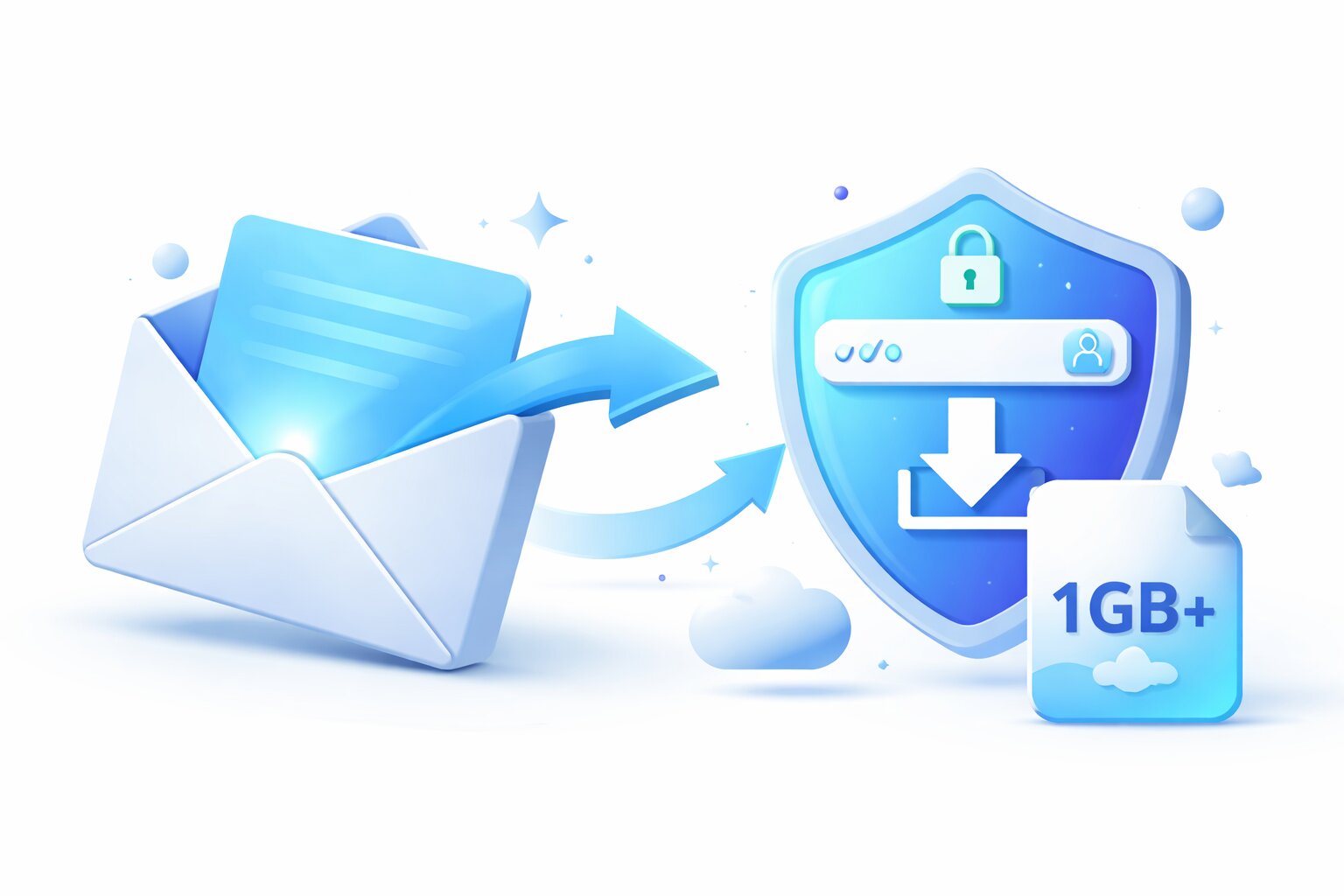
Email attachments still come with strict limits (typically 10–25MB). In 2026, the easiest way to send large files via email is to stop attaching the file and instead send a secure download link. This keeps quality intact, avoids bounced messages, and gives you more control.
Why Email Attachments Fail (and What the Limits Really Mean)
Most email providers cap attachments and also scan large files for security, which can slow delivery or block messages. Even if your email service allows 25MB, the recipient’s inbox may allow less. That’s why “attach and send” is unreliable for videos, design exports, and project folders.
The Modern Method: Upload Once, Email a Link
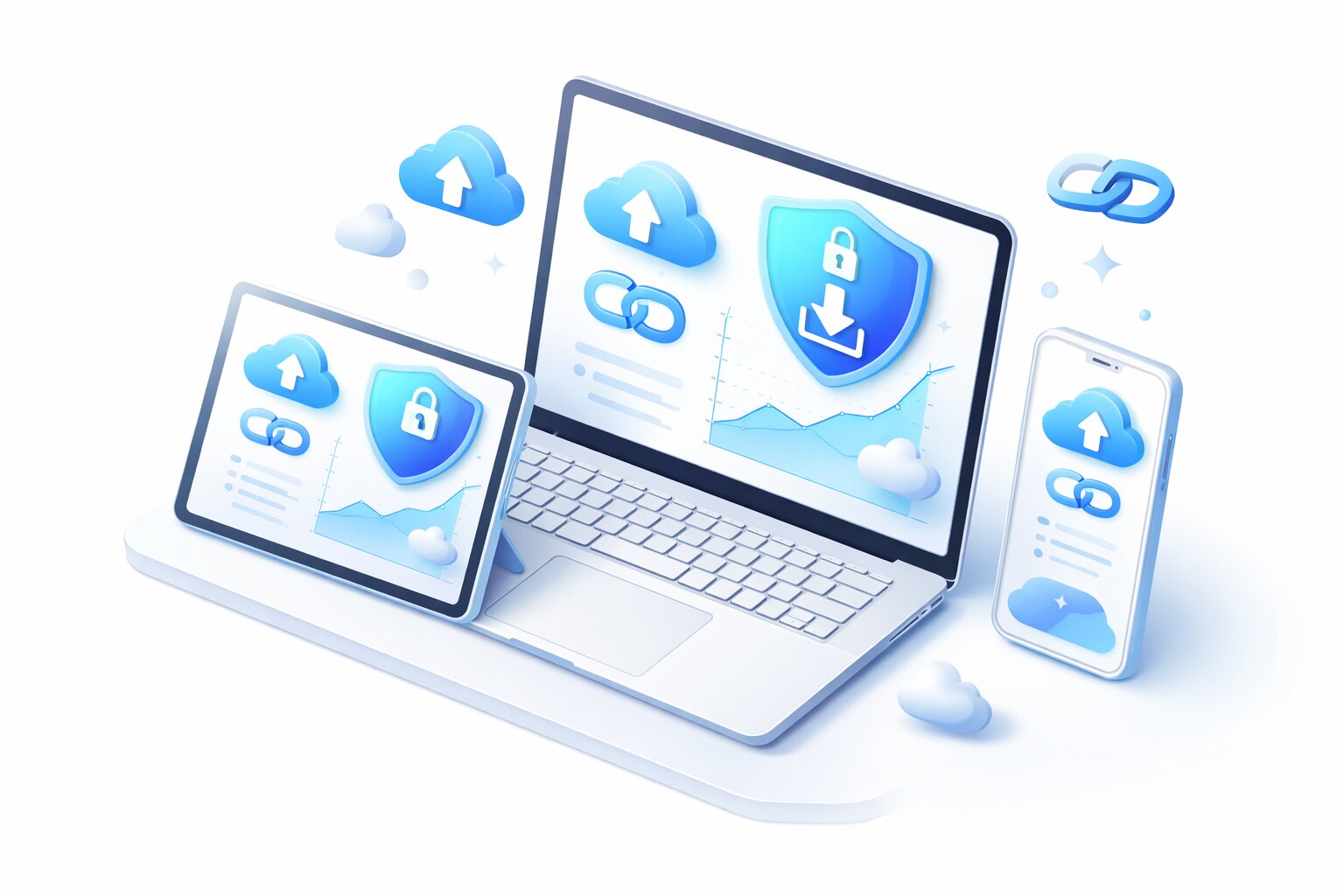
Instead of attaching a file, upload it to a file-sharing service and email a link. This approach:
- Avoids size limits: your email stays small and deliverable
- Preserves quality: no forced compression from email clients
- Improves security: you can add passwords and access limits
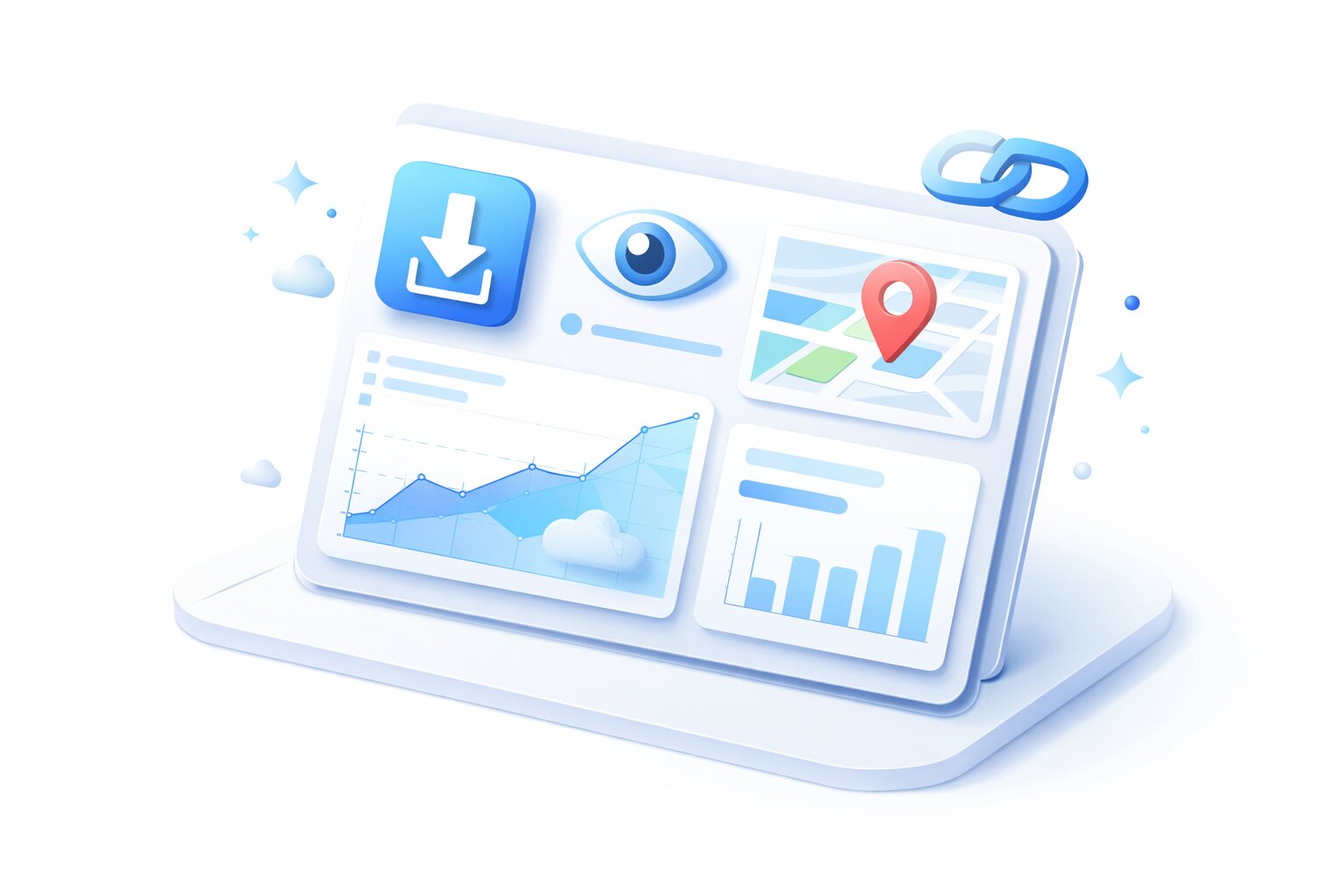
- Enables tracking: see if the link was opened/downloaded (tool-dependent)
Best Options to Send Large Files “Through Email” in 2026
Option 1: ROOOMX (Best for secure links + analytics)
Upload the file to ROOOMX, generate a share link, and paste it into your email. You can add password protection and monitor link activity to confirm delivery and engagement.
- Secure links with optional passwords
- Access controls (limits/management depending on your settings)
- Analytics signals to support follow-ups
Option 2: Cloud Drives (Google Drive, OneDrive, Dropbox)
Great if you already use these ecosystems. Upload the file, set permissions, and share a link in your email. Downsides: permission confusion, less share analytics by default, and recipients sometimes get “request access.”
Option 3: Temporary Transfer Services
Tools like WeTransfer are quick for one-off transfers, but links often expire automatically and advanced controls may require paid plans.
Step-by-Step: Send a Large File by Email Using a Share Link
- Upload the file (or a ZIP) to your chosen tool
- Set access: choose who can open it, add a password if sensitive
- Copy the share link
- Compose the email with a short message + the link
- Optional: send the password via a separate channel (SMS/phone)
Email Template (Copy/Paste)
Subject: Download link for [File Name]
Message:
Hi [Name],
Here’s the download link for the file: [LINK]
If prompted, use this password: [send separately if sensitive].
Let me know once you’ve downloaded it.
Security Tips (So Your Link Doesn’t Get Forwarded Everywhere)
- Protect confidential files with a password
- Use expiring links or access limits when available
- Don’t include the password in the same email as the link
- Monitor access analytics for suspicious activity
FAQ
Can I send a 1GB file via email?
Not as an attachment. The reliable approach is uploading the file and emailing a download link.
Will the file lose quality?
No—sharing the original file via a link preserves full quality (unlike some email/media workflows that compress).
In 2026, the best way to send large files “via email” is to email a secure link. Upload once, share safely, and keep full control using a platform like ROOOMX.